Command Line Interaction Features
This section aims to explain how the command line interface (CLI) of Kea is designed and implemented, including how it handles command line arguments, YAML configuration files, and argument sanitization.
Feature Description and Design
The following flowchart introduces the startup and configuration process of the Kea tool CLI. It encompasses the entire preparation and startup process for automated testing, from command line argument parsing, configuration file loading, test environment setup, to automated test execution. This way, users can configure the testing environment flexibly and automate the execution of test cases.
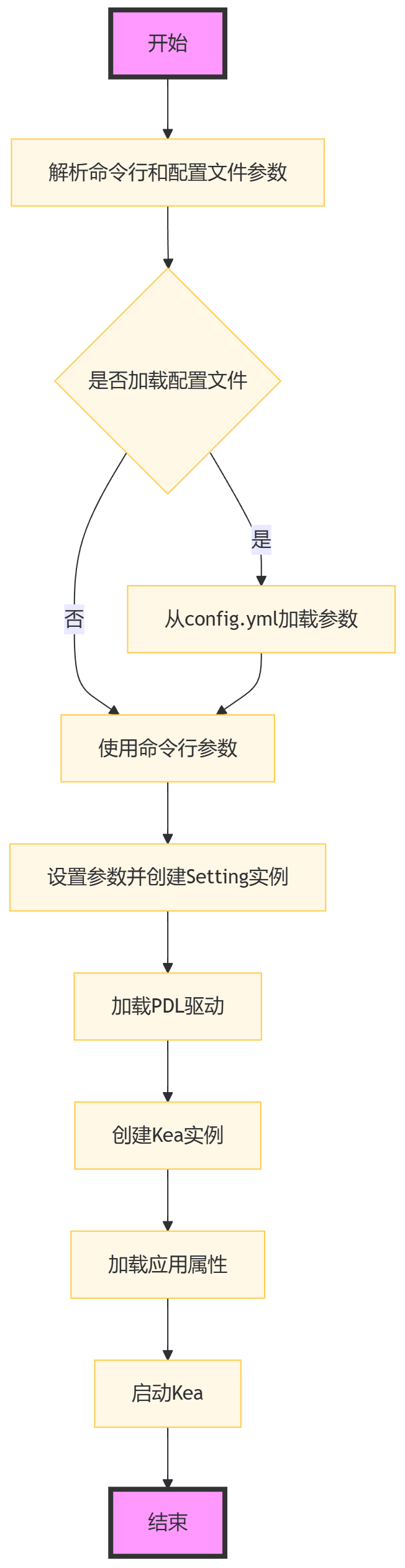
Flowchart of CLI Implementation
The specific execution steps are as follows:
Parse command line and configuration file parameters
Create a parameter parser using the
argparselibrary.Define the accepted command line arguments, such as
-ffor specifying the property file and-dfor specifying the device serial number.Parse the command line input arguments.
Check if the configuration file is loaded
Check if the
--load_configflag is included in the command line arguments, which indicates whether parameters should be loaded from the configuration fileconfig.yml.
Load parameters from `config.yml`
If
--load_configis specified, call theload_yaml_argsfunction to read parameters from theconfig.ymlfile.These parameters will override the parameters specified in the command line.
Use command line arguments
If
--load_configis not specified, use the parameters obtained from command line parsing.
Set parameters and create a `Setting` instance
Create an instance of the
Settingclass based on the parsed parameters, which contains all the required configuration information.
Load PDL driver
Determine whether the target device is Android or HarmonyOS based on the
is_harmonyosproperty in theSettinginstance.Load the corresponding PDL (Property Description Language) driver based on the platform.
Create `Kea` instance
Create an instance of the
Keaclass, which may be the core class of an automated testing framework.
Load application properties
Load the application properties to be tested using the
Kea.load_app_propertiesmethod, which define the application behaviors to be tested.
Start `Kea`
Call the
start_keafunction, passing in theKeainstance andSettinginstance to begin executing the automated testing process.The
start_keafunction will initializeDroidBot, which is the data generator forKeaand start the testing.
Command Line Argument Parsing
Kea uses the argparse library to parse command line arguments. Here are the main command line parameters:
-for--property_files: Specify the property files for the application to be tested.-dor--device_serial: Specify the serial number of the target device.-aor--apk: Specify the path to the APK file of the application to be tested, or the package name of the application.-oor--output: Specify the output directory, defaults to “output”.-por--policy: Specify the input event generation policy, defaults to “random”.-tor--timeout: Specify the timeout duration (in seconds), defaults to a preset value.-debug: Enable debug mode and output debug information.-keep_app: Keep the application on the device after testing.-grant_perm: Grant all permissions upon installation, useful for Android 6.0 and above.-is_emulator: Declare the target device as an emulator.-is_harmonyos: Use a HarmonyOS device.-load_config: Load parameters fromconfig.yml, command line parameters will be ignored.
YAML Configuration File
Kea supports specifying parameters through a YAML configuration file (config.yml) to simplify the parameter configuration process. Parameter values in the YAML file will override command line parameters.
Parameter Object
Kea defines a parameter object named Setting using dataclass, which is used for storing and passing parameters. This object contains all configurations related to testing.
Start Kea
Here is a brief description of the Kea startup process:
Parse command line arguments and the YAML configuration file.
Set up the parameter object Setting.
Load the corresponding PDL driver based on the target platform.
Create a Kea instance and load application properties.
Start Kea for testing.
Main Function Design
Here are the functional introductions of each main function in the Kea CLI:
- parse_args function:
Responsible for parsing command line input arguments.
Sets the corresponding command line parameters based on user input and handles the -load_config option to decide whether to load parameters from the YAML configuration file.
The simplified code is as follows:
def parse_args():
    parser = argparse.ArgumentParser(...)
    parser.add_argument(...)
    options = parser.parse_args()

    # load the args from the config file `config.yml`
    if options.load_config:
        options = load_ymal_args(options)

    # sanitize these args
    sanitize_args(options)

    return options
- load_yaml_args function:
Responsible for reading parameters from the config.yml YAML configuration file.
Applies the parameter values from the configuration file to the parameter object, overriding the command line input parameters.
The simplified code is as follows:
def load_yaml_args(opts):
    config = get_yml_config()
    key_map = {...}
    for key, value in config.items():
        key_lower = key.lower()
        if value and key_lower in key_map:
            key_map[key_lower](value)

    return opts
- sanitize_args function:
Sanitizes and validates the parsed parameters.
Ensures that all parameters are valid and consistent before passing them to Kea.
The simplified code is as follows:
def sanitize_args(options):
    if not options.device_serial:
        identify_device_serial(options)
    if not options.apk_path or not options.property_files:
        raise Error
    if not options.apk_path.endswith(('.apk', '.hap')):
        sanitize_app_package_name(options)
- Setting data class:
Defines the data structure for configuration parameters required for Kea operation.
Stores and manages parameters such as APK paths, device serial numbers, output directories, etc.
The simplified code is as follows:
class Setting:
    apk_path: str
    device_serial: str = None
    output_dir: str = "output"
    is_emulator: bool = True
    policy_name: str = "default_policy"
    event_count: int = 100
    keep_app: bool = None
    keep_env = None
    number_of_events_that_restart_app: int = 100
    is_harmonyos: bool = False
    generate_utg: bool = False
    is_package: bool = False
- load_pdl_driver function:
Loads the corresponding PDL driver based on the target platform (Android or HarmonyOS).
Ensures that Kea can interact with the operating system of the target device.
The simplified code is as follows:
def load_pdl_driver(settings):
    if settings.is_harmonyos:
        from kea.harmonyos_pdl_driver import HarmonyOS_PDL_Driver
        return HarmonyOS_PDL_Driver(serial=settings.device_serial)
    else:
        from kea.android_pdl_driver import Android_PDL_Driver
        return Android_PDL_Driver(serial=settings.device_serial)
- start_kea function:
Initializes a DroidBot instance and sets up the PDL driver for Kea.
Creates a Kea instance, loads application properties, and begins executing tests.
The simplified code is as follows:
def start_kea(kea, settings):

    # droidbot is used as the data generator of Kea
    droidbot = DroidBot(...)
    kea._pdl_driver.set_droidbot(droidbot)
    droidbot.start()
- main function:
Acts as the entry point of the program, linking the entire Kea startup process.
Calls other functions to complete parameter parsing, configuration loading, PDL driver loading, and Kea startup.
The simplified code is as follows:
def main():
    options = parse_args()
    settings = Setting(...)
    driver = load_pdl_driver(settings)
    Kea.set_pdl_driver(driver)
    Kea.load_app_properties(options.property_files)
    kea = Kea()
    start_kea(kea, settings)