Guide to Reading Defect Reports
Defect Report Diagram
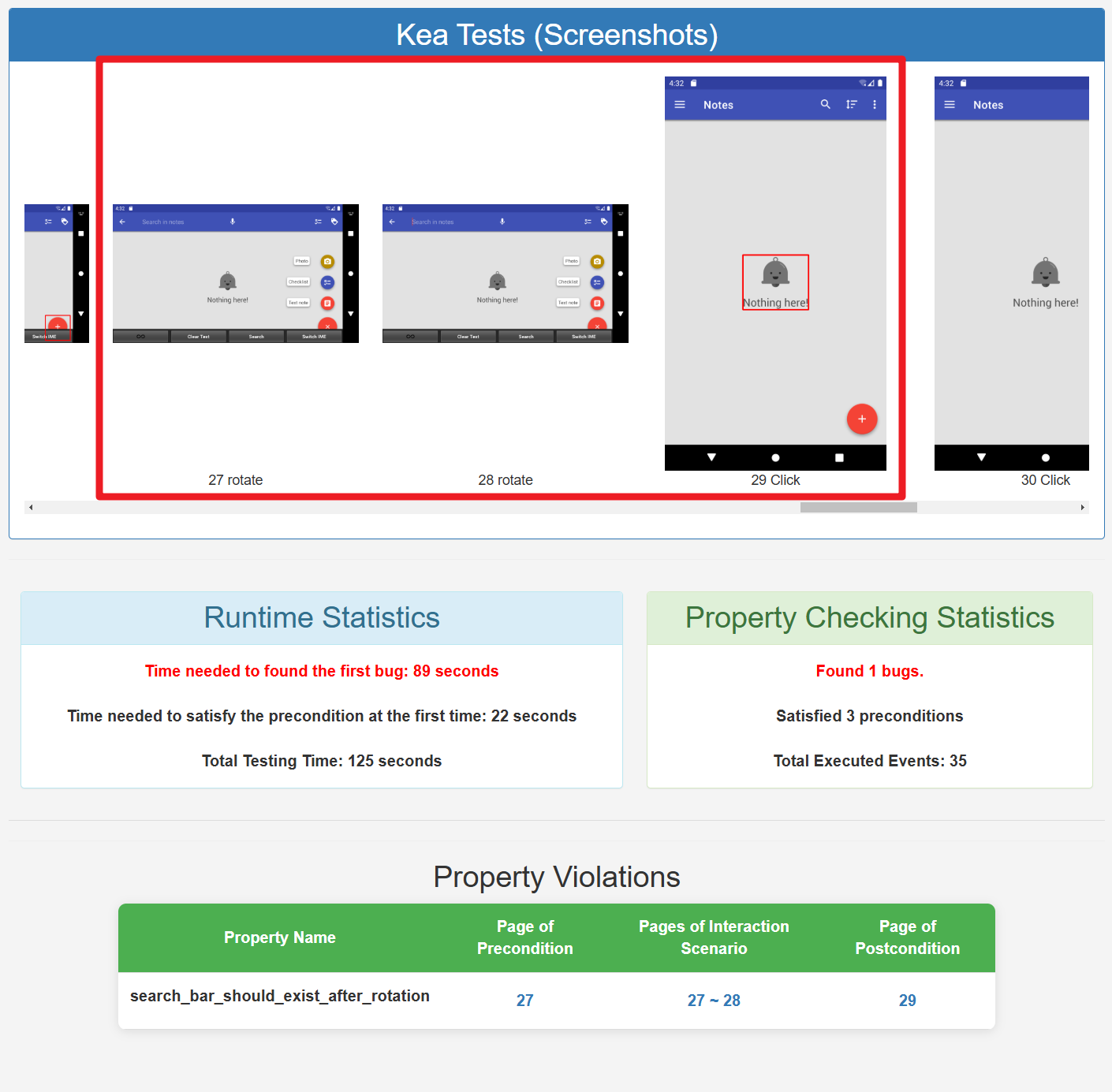
The image above is an error report for Omninotes, where the search bar disappeared after the user rotated the screen. Therefore, this violates the property that the ‘search box should still exist after the screen rotation’.
After the test execution is complete, you will find bug_report.html in the output path you set. You can open this bug_report.html using a browser (e.g., Google Chrome, Firefox).
The report contains screenshots of each user interface state during the testing process, which can help you identify and reproduce the error. Below each screenshot, you can see the event index and event types (e.g., click, long click) executed in that user interface state.
The Time Consumption Statistics module records the time of the first violation of property, the time of first meeting preconditions, and the total time spent on tests so far.
The Satisfaction Quantity Statistics module records the total number of violations of properties and the number of times preconditions have been met so far, as well as the total number of events operated.
The table at the bottom of the bug_report.html interface shows a list of property violations, including the Precondition Page, Interaction Page and Postcondition Page for each violated property. Clicking the links within the table will take you to the corresponding screenshot to help users understand the specific bug triggers.