Write Your First Property
Check the Environment
Kea is a property-based mobile application testing framework that currently supports Android and HarmonyOS. Please ensure you have a mobile device and have installed the Android/HarmonyOS command line tools on your computer. Check if adb (Android) or hdc (HarmonyOS) is available.
If you don’t have a physical device, you can use Kea with an emulator.
Please ensure you have python 3.8+ installed.
Installation
Install Kea using the following command
git clone https://github.com/ecnusse/Kea.git
cd Kea
pip install -e .
Enter kea -h to check if Kea has been installed successfully.
Write Your First Property (Android)
Start your device or Android emulator. Type adb devices in the terminal to ensure it is available.
We will use weditor to inspect Android elements and write properties.
1. Start weditor and install your application.
pip install weditor==0.7.3
python -m weditor
The above command will install weditor on your computer and start it. It provides a host server (default: http://localhost:17310). You can access it in your web browser.
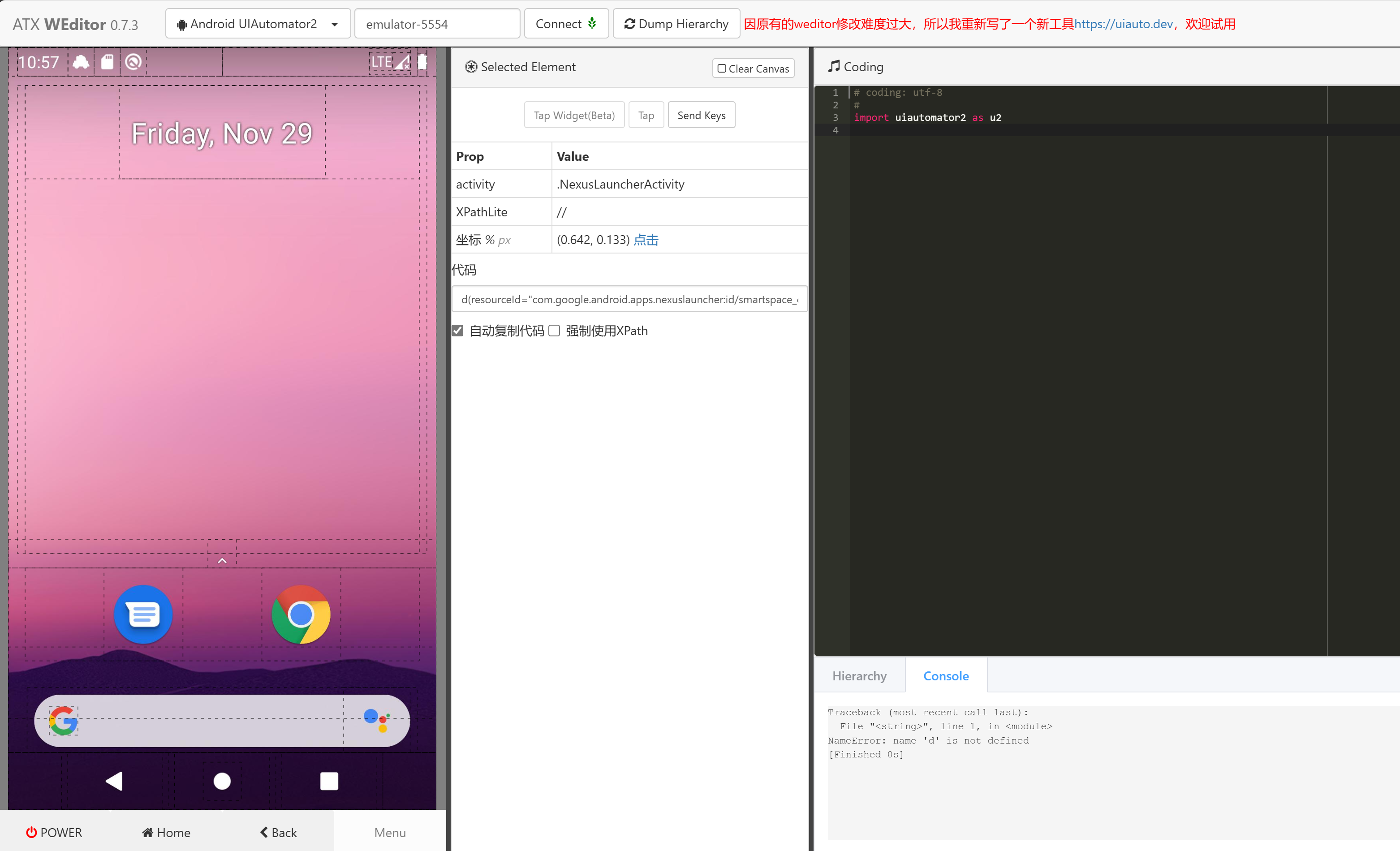
Homepage of weditor.
Next, enter the kea workspace and install the omninotes application.
adb install example/omninotes.apk
Check if the application has been successfully installed.
2. Dump Hierarchy and Inspect Android Elements
Dump hierarchy in weditor to obtain Android elements.
Enter Device Serial Number -> Connect -> Dump Hierarchy
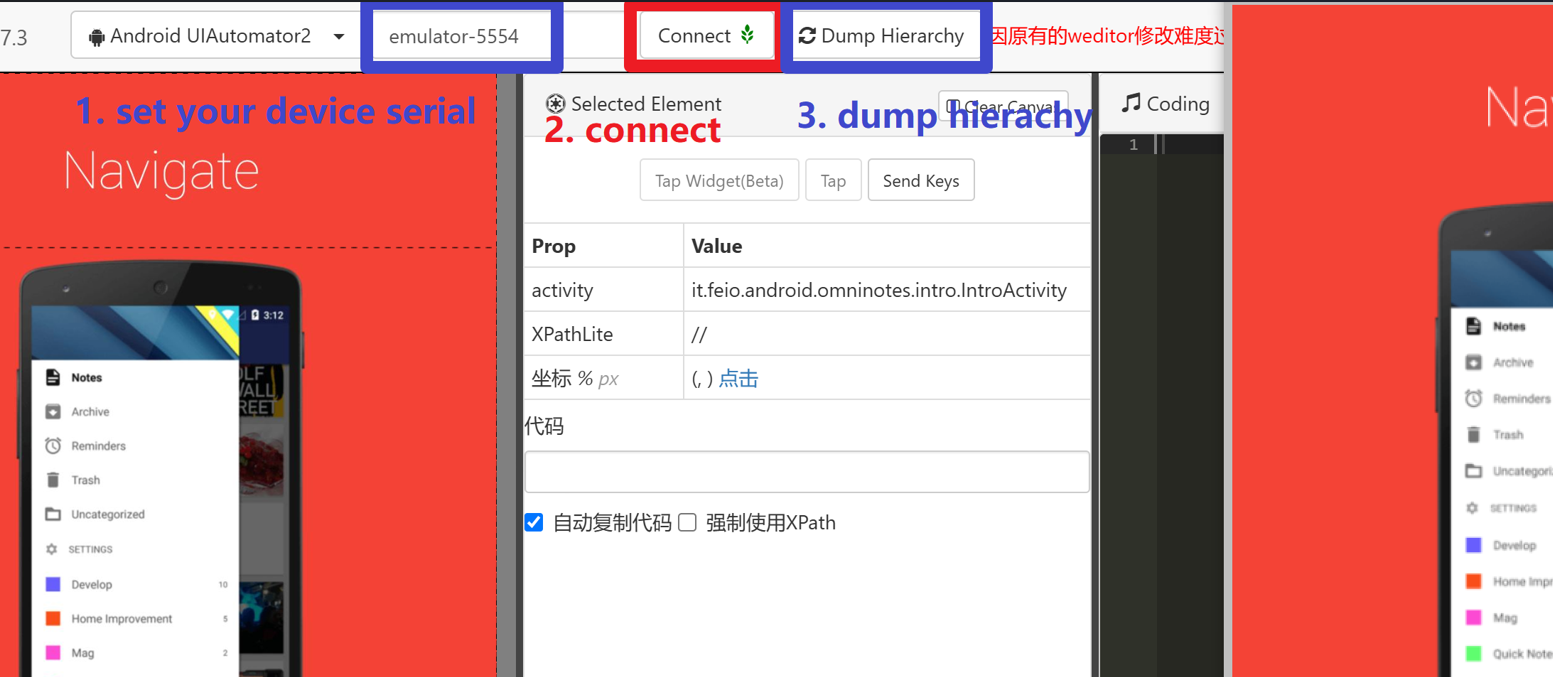
Dump hierarchy from weditor
After connecting to weditor, you can click on Dump Hierarchy to refresh elements (i.e., Dump Hierarchy) whenever your screen changes. Alternatively, you can enable automatic Dump Hierarchy to avoid manually refreshing elements.
You can click on an element and check its properties.
3. Write Your First Property
We have a simple functionality in this application that we need to check: the search input box should not be cleared after rotation.
Now, let’s write the precondition. This should be the only feature at the beginning of the functionality. We want to check the search input box, so let’s first navigate to the search functionality. By clicking the Search button, you can enter the search edit page. Obviously, the only feature of this page should be the search input box itself.
Dump hierarchy in weditor. Click on the search box to check its properties.
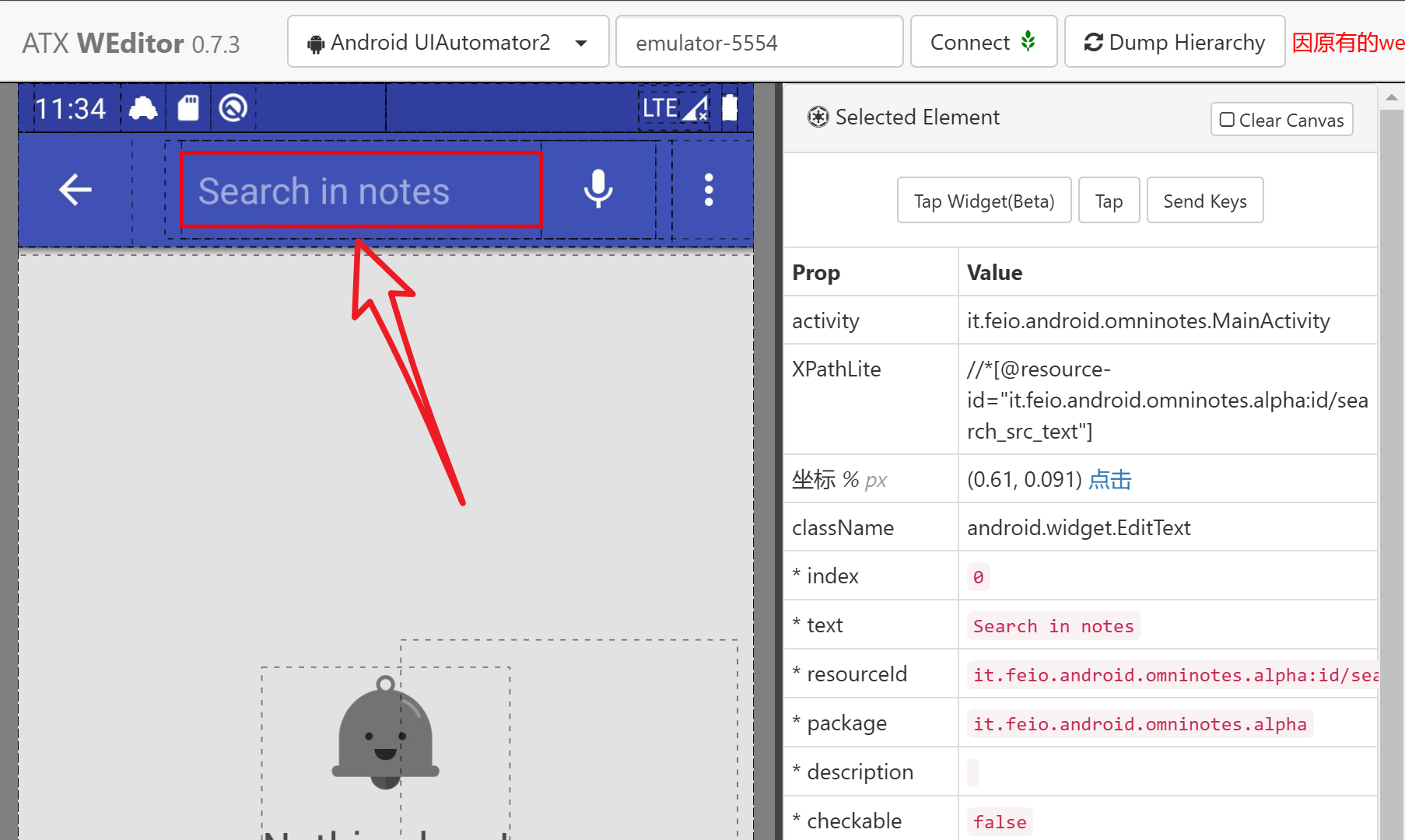
Inspect a control in weditor
We need control-specific properties to locate a control. The most commonly used unique property is resourceId. If there is no resourceId, text or className can also work, but in most cases they are not unique and can lead to errors.
Therefore, to avoid Kea entering an erroneous state, you can use multiple properties to locate a control in the selector and use multiple controls to locate a page.
After inspection, we know the resourceId of the search input box. We can locate it using the following command.
d(resourceId="it.feio.android.omninotes.alpha:id/search_src_text")
Note
You may be confused by the d(**selector) script. This is Kea’s PDL (Property Description Language) used for interacting with the AUT (Application Under Test). You can read Property Description Language Interface for more details.
To check if this control exists, we call ``exists``.
d(resourceId="it.feio.android.omninotes.alpha:id/search_src_text").exists()
Hint
Double-click on the control in weditor. This will automatically generate the click action script for you. You can refer to it to write your own script.
Write Interaction Scenarios (i.e., the action of the function).
We need to rotate the device. From portrait to landscape, and back to portrait. The script can be written as follows: d.rotate('l') d.rotate('n')
Write postconditions. The input box should still exist after rotation. We use assertions to confirm its existence.
assert d(resourceId="it.feio.android.omninotes.alpha:id/search_src_text").exists()
Congratulations! You have written your first property!
4. Wrap Your Properties Using Kea API
Create a Python file my_prop.py in the root directory of Kea.
#my_prop.py
from kea import *

class CheckSearchBox(KeaTest):
    @precondition(lambda self: d(resourceId="it.feio.android.omninotes.alpha:id/search_src_text").exists())
    @rule()
    def search_box_should_exist_after_rotation(self):
        d.rotate('l')
        d.rotate('n')
        assert d(resourceId="it.feio.android.omninotes.alpha:id/search_src_text").exists()
Start Kea and Check Your Properties
Start Kea with the following command.
kea -f my_prop.py -a example/omninotes.apk -o output -d your_device_serial
Check the error report in output/bug_report.html. You can learn how to read the error report in this tutorial: Guide to Reading Defect Reports.