Setting Up Android SDK Environment on MAC OS
Install the Android command-line tools. Go to Android Developer and download the tools that match your operating system.
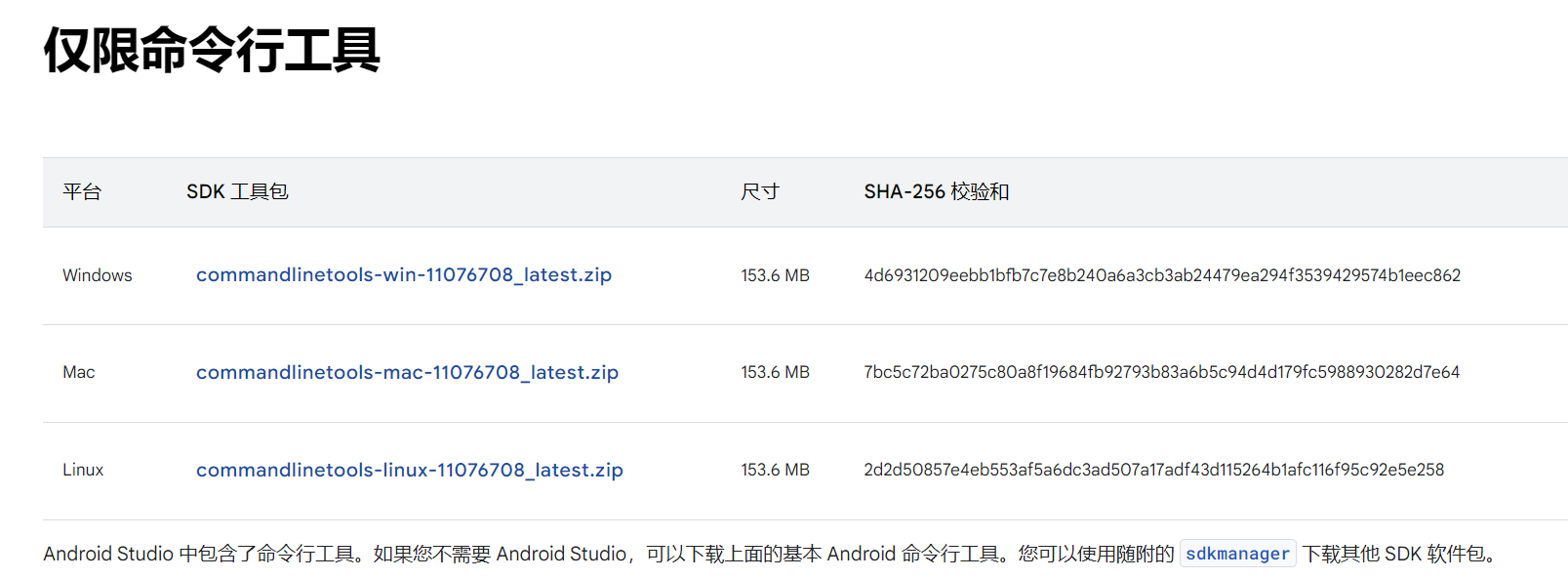 You can use
wgeton the command line to download the tools package, or download and extract it from the browser.You can copy the download link from the above Android Developer site, and then use the following command.
wget https://dl.google.com/android/repository/commandlinetools-mac-11076708_latest.zip?hl=zh-cn
mkdir -p Android/cmdline-tools
unzip commandlinetools-mac-11076708_latest.zip?hl=zh-cn -d Android/cmdline-tools
mv Android/cmdline-tools/cmdline-tools Android/cmdline-tools/latest
Configure the relevant environment.
Install Java. (If you have previously installed and configured Java, you need to check if your JDK is compatible with the command-line tools. If the version is compatible, you can skip the following steps about configuring the Java environment.)
We useJDK-17to run the Android emulator.sudo brew install openjdk@17
Open your
.bashrcfile.sudo nano ~/.zshrc
Add the following content at the end of the file.
export PATH="/opt/homebrew/opt/openjdk@17/bin:$PATH"
export ANDROID_HOME="/Users/your_id_name/the_path_you_store_commandline_tools/Android"
export PATH="$ANDROID_HOME/emulator:$ANDROID_HOME/tools:$ANDROID_HOME/cmdline-tools/latest/bin:$ANDROID_HOME/tools/bin:$ANDROID_HOME/cmdline-tools/latest:$ANDROID_HOME/platform-tools:$PATH"
Ensure that thePATHconfiguration matches the path where you store the relevant tools.Finally, reload the
.zshrcfile to apply the changes immediately to the current terminal session.source ~/.zshrc
Verify whether
sdkmanageris successfully installed.sdkmanager --update sdkmanager --list sdkmanager --licenses
If you receive the following message, the installation is successful.

You can learn more from the common commands of sdkmanager.